ChatGPT Travel Planning: How to Use the Trip.com App


Planning a trip often means switching between flight search engines, hotel pages, train timetables, maps, and lists of things to do. Even a simple holiday can leave you with dozens of tabs open while you compare prices, locations, schedules, and reviews. The Trip.com plugin in ChatGPT brings these steps into one conversation, helping you search and compare flights, hotels, trains, attractions, and tours using natural language.
A faster way to plan travel with Trip.com in ChatGPT
The Trip.com plugin helps travelers explore the main parts of a trip without repeatedly filling in separate search forms. Tell ChatGPT where you want to go, when you plan to travel, how many people are traveling, and what matters most to you. The plugin can then search relevant Trip.com options and present them in the conversation.
You might start by comparing flights, continue with a hotel near the places you want to visit, check whether a train is more convenient for part of the journey, and then look for attraction tickets or local tours. Because the conversation keeps your requirements together, it is easier to refine the plan as your dates, budget, or preferences change.

What is the Trip.com plugin in ChatGPT?
The Trip.com plugin is a travel search tool that connects ChatGPT with Trip.com’s travel services. Instead of navigating multiple menus and filters, you can describe a trip in everyday language. The plugin turns that request into a search for relevant flights, hotels, trains, attractions, and tours.
For example, you could ask for a morning flight from Singapore to Tokyo, a hotel near Shinjuku Station, a high-speed train from Tokyo to Osaka, or family-friendly activities in Osaka. ChatGPT can help organize and compare the results, while Trip.com supplies the travel options and available product information.
The plugin is particularly useful during the research and comparison stage. When you select an option, you will normally continue to Trip.com to review the latest details and complete the booking securely.
Can I use the Trip.com plugin in ChatGPT right now?
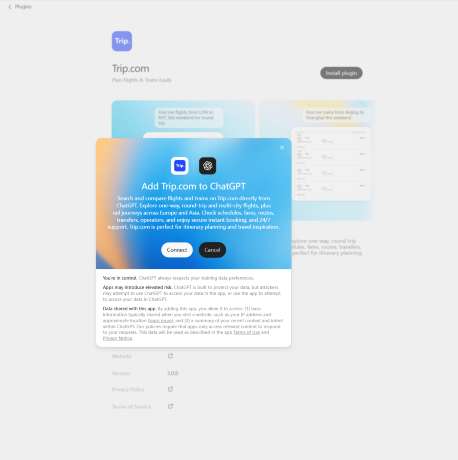
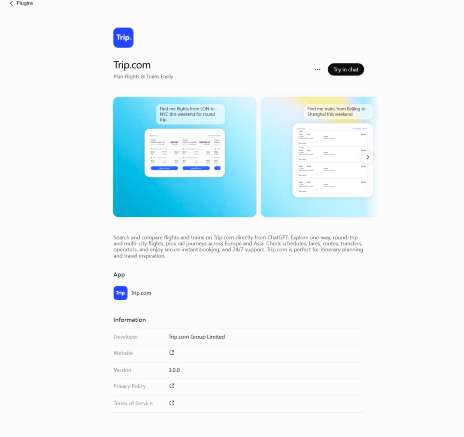
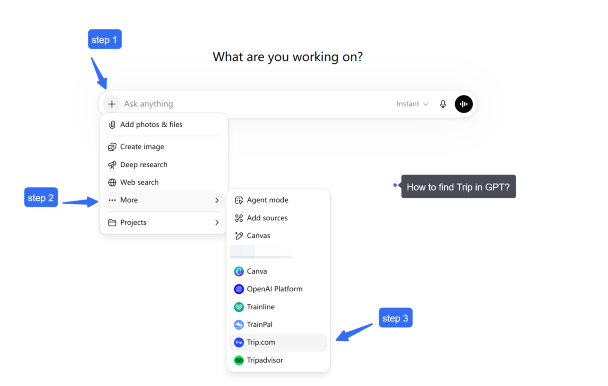
Availability may depend on your location, ChatGPT account, subscription, and workspace settings. Start by signing in to ChatGPT and opening the Plugins section. Search for Trip.com, open its page, and follow the instructions to connect or enable it.
If you use ChatGPT through a company or other managed workspace, an administrator may need to approve third-party plugins. The entry point can also vary as ChatGPT updates its interface, so check the Plugins directory or your account settings if Trip.com does not appear immediately.
Once enabled, open a conversation and ask for the travel product you need. It helps to mention Trip.com in your first request so ChatGPT knows which plugin to use.
What can I do with the Trip.com plugin today?
The Trip.com plugin can help you search and compare several key travel products within the same ChatGPT conversation.
Search flights
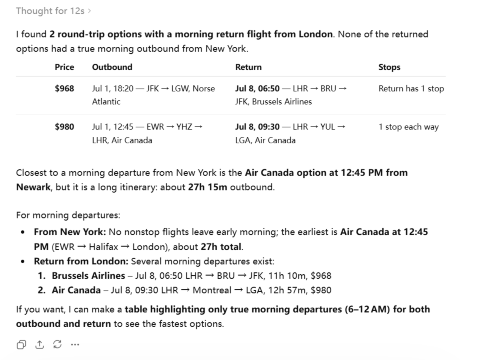
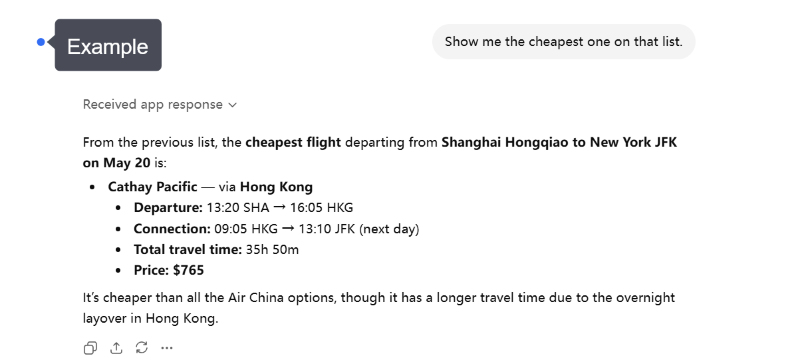
You can search for one-way, round-trip, and multi-city flights. Results may include airlines, departure and arrival airports, flight times, total journey duration, stopovers, and available fares. You can also refine the results by asking for nonstop flights, preferred departure times, shorter layovers, nearby airports, or more affordable dates.
Let's try:
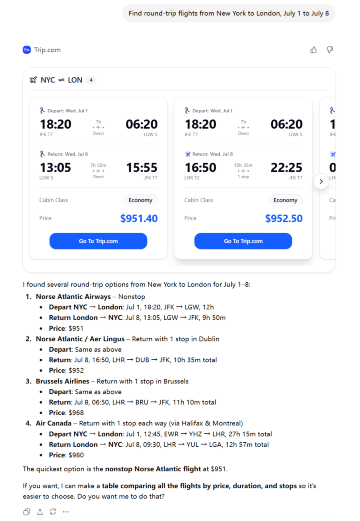
If you input "Show flights leaving in the morning," you will receive pre-screened information:
Find hotels
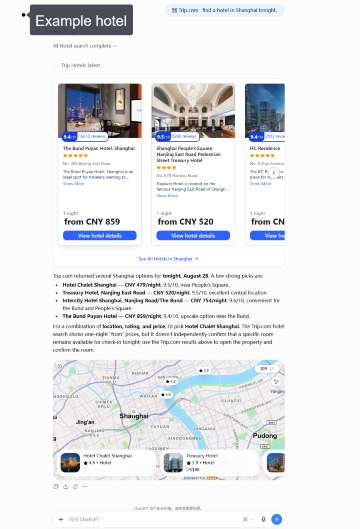
Search for hotels by destination, dates, number of guests, location, budget, star rating, or preferred facilities. You can ask for a hotel near a station, business district, beach, or attraction, then compare options using details such as price, guest rating, room type, breakfast, and available amenities.
For example, you can ask the Trip.com plugin to find a well-rated hotel in a specific neighborhood and compare the available rooms, prices, guest ratings, and amenities.
Search trains
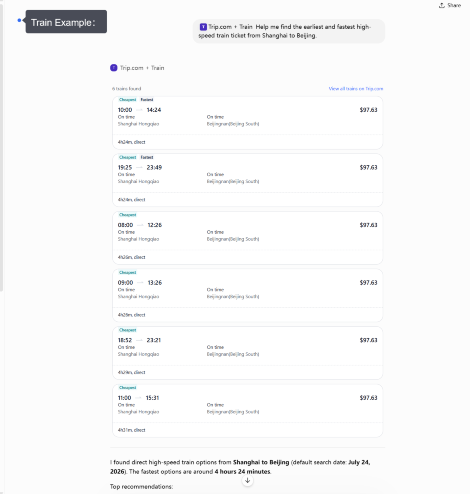
The plugin can help find train routes and schedules in supported destinations. Depending on the route, results may show departure and arrival stations, journey times, transfers, train types, seat classes, and fares. This is useful for high-speed, intercity, and cross-border rail journeys, as well as trips where you want to compare traveling by train with flying.
Discover attractions and tours
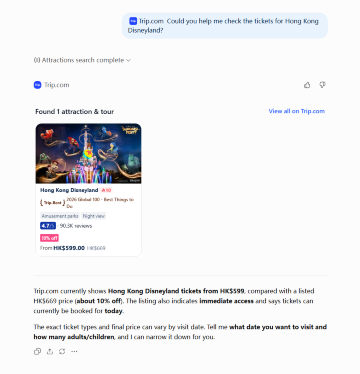
You can also use the plugin to explore things to do at your destination. Ask for popular attractions, theme parks, museums, observation decks, cultural experiences, day tours, or family-friendly activities. Available information may include opening times, ticket options, visitor ratings, tour duration, language, cancellation conditions, and whether transportation or hotel pickup is included.
You can also use the plugin to explore things to do at your destination...
Build a connected travel plan
These services do not have to be searched separately. You can ask ChatGPT to connect them into a practical trip—for example, a flight to Paris, a centrally located hotel, a train to Amsterdam, and attraction tickets for both cities. You can then refine each part without starting the search again.

Mainland China/Hong Kong/Macau 5G eSIM | 5 Carriers · All AI | Day Pass/Total Data Package | 24-Hour Billing | QR Code
4.6/5
21833 reviewsI used it in Hong Kong and Shenzhen. The signal dropped once when I traveled from Hong Kong to Shenzhen, but after readjusting the data roaming settings, it reconnected without any problems. Occasionally, the signal was poor, but that might be a location issue. It was convenient because I didn't need to carry multiple SIM cards.

5G/4G eSIM in 8 Asian countries | Multi-network support, supports ChatGPT & Google Maps | 500MB/day - 50GB total | 1-30 days | 24-hour billing | QR code
4.6/5
6465 reviewsI got an iSIM for just 800 rubles for about 15 days across several countries. It works great everywhere. Very convenient.

Mainland China 5G eSIM | Supports Google Maps / ChatGPT | Daily/Total Data Plans | 24-Hour Billing | 1–365 Days | QR Code
4.6/5
29846 reviewsThe esim was amazing, the connection was seamless and compatibility is top notch. I could set it up for hotspot for me and my friend. The best part is that most places have Wi-Fi so it’s easier to switch to Wi-Fi and back to data and it’s able to last throughout the trip. I highly recommend this esim to any traveler and you will not regret it.,

Mainland China 5G eSIM | Day Pass/Total Data Package | ChatGPT Available | 24-Hour Billing | 1-365 Days | QR Code
4.6/5
65638 reviewsI used this eSIM during my trip to China, and it made staying connected much easier. The setup was straightforward, and it was convenient to have mobile data without needing to buy a physical SIM card. It was helpful for using maps, messaging, and checking information while traveling. Overall, a convenient option for anyone visiting China!

China eSIM | 1-30 Days | Up to 60GB High-Speed Data | Coverage on Leading Network
4.3/5
119 reviewsThe signal is excellent, it's very easy to activate, the price is considerably better than buying from a regular store, and the signal quality is significantly better.
How do I search with the Trip.com plugin?
Describe what you need in natural language and include the information you already know. You do not need to use airport codes, station codes, or exact product names.
For example:
- “Find round-trip flights from London to Tokyo from October 5 to October 14.”
- “Show hotels in Tokyo near a subway station for two adults.”
- “Find high-speed trains from Tokyo to Osaka on October 9.”
- “What attractions should I book in Osaka for a family with two children?”
- “Help me plan a seven-day Japan trip with flights, hotels, trains, and activities.”
After the first results appear, continue the conversation to narrow them down. You might ask for a lower price, a better location, fewer transfers, a different travel date, or activities suited to a particular type of traveler.
What should I include for better travel results?
A detailed request gives the plugin more information to work with. Include the destination, dates, number of travelers, budget, and any preferences that could affect your choice.
For flights, mention whether the trip is one-way or round-trip, your preferred departure time, cabin class, and whether you want to avoid stopovers. For hotels, include the neighborhood or landmark, number of rooms, preferred star rating, and facilities such as breakfast, parking, a pool, or free Wi-Fi.
For trains, specify the departure and arrival cities, travel date, preferred time, and seat class when relevant. For attractions and tours, include the destination, date, group type, interests, and any accessibility or language requirements.
Useful prompts include:
- “Find the cheapest nonstop flight from New York to London in September.”
- “Show four-star hotels near Shinjuku Station with breakfast included.”
- “Find the earliest high-speed train from Shanghai to Beijing tomorrow.”
- “Show family-friendly attractions in Singapore that take less than half a day.”
- “Find an English-speaking day tour from Bangkok with hotel pickup.”
You can still begin with a broad request. ChatGPT may help you identify the missing details before using the plugin to run a more focused search.
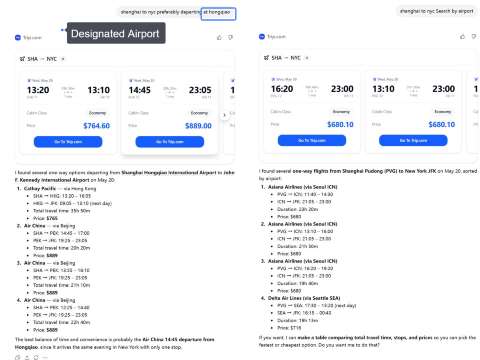
How do I compare options after the first search?
Continue the same conversation and tell ChatGPT what you want to prioritize.
For flights, compare total price, airports, departure times, journey duration, baggage conditions, and the number and length of stopovers. For hotels, compare location, nightly price, guest ratings, room details, breakfast, facilities, and cancellation terms.
For trains, look at the departure station, arrival station, journey time, transfers, train type, seat class, and ticket conditions. For attractions and tours, compare the activity duration, start time, meeting point, included services, language, age requirements, and cancellation policy.
You can also compare products across categories. For example, ask whether a train or flight is more practical between two cities, or whether a more expensive hotel could reduce daily transportation time. The best option is not always the cheapest one; it should also fit the schedule and the overall trip.
For trains, compare:
- Departure and arrival times
- Travel duration and transfers
- Train types, seat classes, and fares when available
Choose the option that best fits your schedule, budget, and travel preferences.
What should I check before booking?
Always review the final product page on Trip.com before confirming a booking, as prices and availability may change.
For flights, verify the passenger names, travel dates, airports, local departure and arrival times, baggage allowance, fare rules, and cancellation or change conditions. For hotels, confirm the property address, room type, guest capacity, taxes and fees, breakfast details, check-in requirements, and cancellation deadline.
For trains, check the exact stations, train number, travel date, departure time, seat class, passenger requirements, and ticket collection or boarding instructions. For attractions and tours, review the date, time slot, meeting point, inclusions, age or height restrictions, language, pickup arrangements, and cancellation policy.
The plugin helps with discovery and comparison, but the secure Trip.com booking page is the final source for the price, availability, and conditions that apply to your purchase.
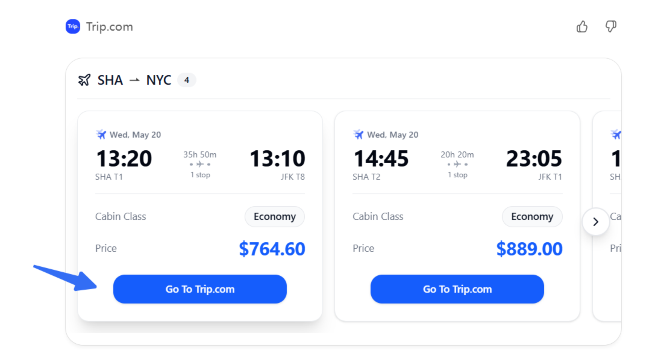
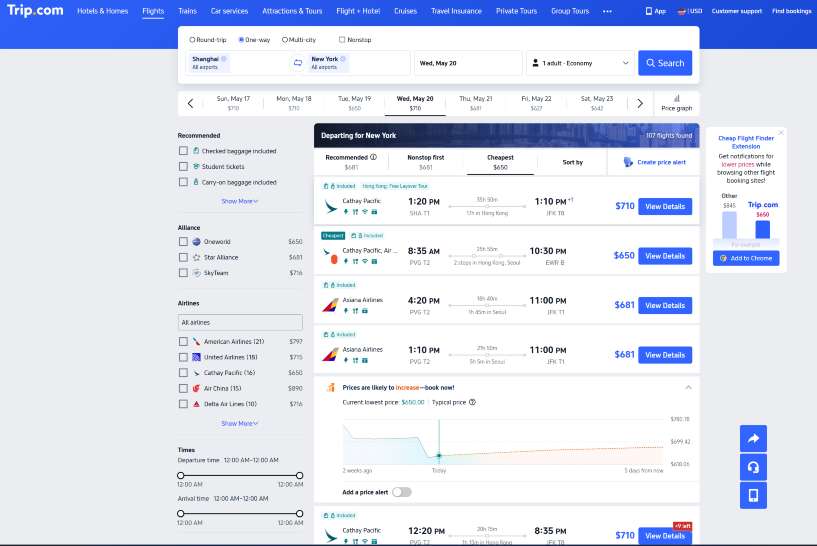
Plan more of your trip in one conversation
With flights, hotels, trains, attractions, and tours available through the Trip.com plugin, ChatGPT can help connect different parts of a journey.
For example, after choosing a flight, ask for a hotel that matches your arrival airport and itinerary. Next, search for a train to the second city on your route and attractions near each hotel. If one part changes, such as the flight date, you can ask ChatGPT to update the related hotel, train, and activity searches.
This conversational approach is especially helpful for multi-city trips. Instead of treating every reservation as a separate task, you can evaluate how each choice affects the rest of the journey.
Conclusion: Start with one travel request
The Trip.com plugin makes it easier to move from a travel idea to a practical set of options. You can search flights, find hotels, compare train journeys, and discover attractions or tours without leaving the ChatGPT conversation during the planning stage.
Start with a simple request such as, “Help me plan a five-day trip to Tokyo,” then add your dates, budget, and preferences. When you find an option you like, continue to Trip.com to review the latest details and complete the booking.
[10% Off] Best China Hotel Recommendations
10 Best Global Hotels
See All Hotels
 NO.1
NO.1






FAQs about using the Trip.com app in ChatGPT
-
Is the Trip.com plugin the same as the Trip.com mobile app?
-
What products can I search for?
-
Can I book directly inside ChatGPT?
-
Can I search for cheap flights and hotels?
-
Can I search for train tickets?
-
Can I find attraction tickets and tours?
-
Can I change my request after seeing the results?
-
Does the plugin show live prices and availability?
-
What information should I include in my prompt?
-
What should I double-check before paying?
Disclaimer: This article has been provided by an individual contributor or third party platform. If there is any discrepancy regarding the copyright, please contact us directly and we will delete the content immediately.
Trending Searches
-
Air Travel Guide
-
Latest Flight Deals
-
Popular Flight & Hotel Packages
-
Getting Around
-
eSIM/SIM card
- Tokyo Flight and Hotel
- Koh Samui Flight and Hotel
- Osaka Flight and Hotel
- Langkawi Flight and Hotel
- Antalya Flight and Hotel
- London Flight and Hotel
- Shanghai Flight and Hotel
- Hong Kong Flight and Hotel
- Bangkok Flight and Hotel
- Da Nang Flight and Hotel
- Dubai Flight and Hotel
- Puerto Princesa Flight and Hotel
- Sanya Flight and Hotel
- Phuket Flight and Hotel
- Singapore Flight and Hotel
- Shanghai Pudong Airport Transfer
- Child Car Seats in China
- China domestic flight vs train with kids
- Chengdu Layover
- Hongqiao Railway Station to Pudong Airport
- Shaanxi Day Tours
- Ine Day Tours
- Tunisia Activities
- Naha Activities
- Takamori Day Tours
- Wellness & Spa in China
- Pattaya Restaurant Discounts
- Miaoli Day Tours
- Cancun Day Tours
- Montreal Day Tours
- Luxor Hot Air Balloon
- Philippines Day Tours