How to Get Trip.com Flight Cancellation: A Step-to-Step Guide

by Trip.com
July 2, 2026

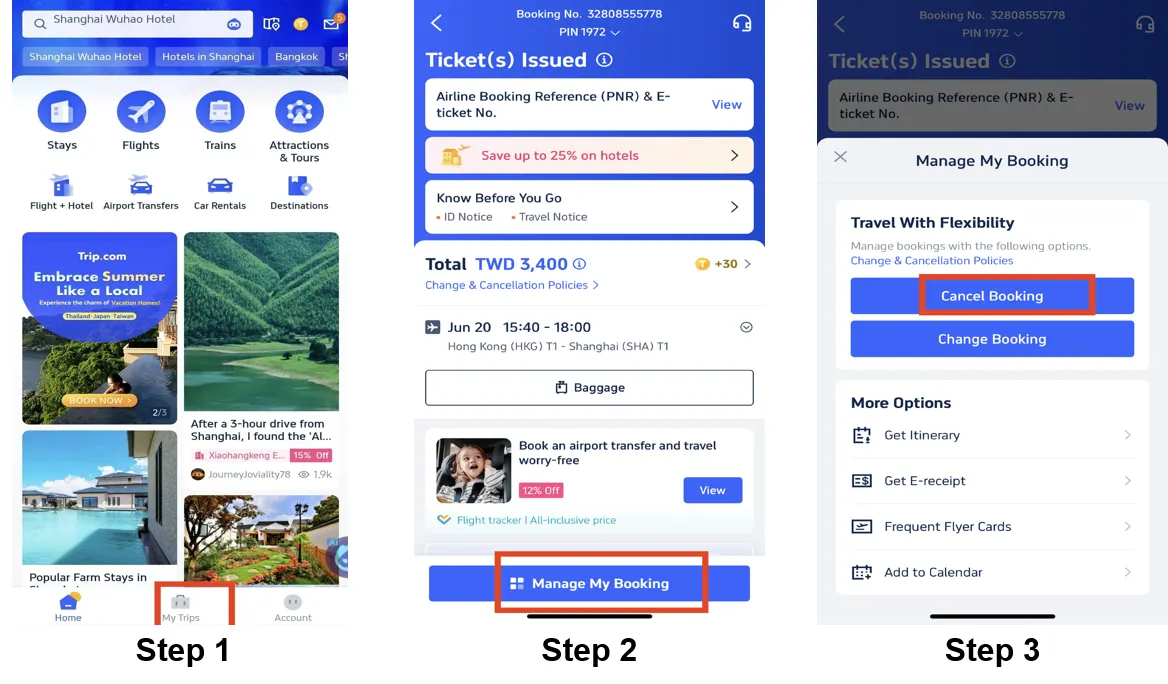
Step 1: Enter the Trip.com App to Cancel the Flight
Log in to your Trip.com account on your mobile device and Go to "My Trips" section. This is where you'll find all your bookings.
Step 2: Find the Flight Booking
Click on "Manage My Booking" to find the flight booking you need to cancel.
Step 3: Request the Trip.com Flight Cancellation
Tap the button "Cancel Booking" to cancel the flight booking. According to Flight Cancellation Policy for most airlines, cancelling flight may request fee.
Note: Flight cancellation rules are subject to airline policies, fare type and regional regulations. The exact refund amount and fees are always subject to the real-time details on your order page.
Step 4: Confirm the Trip.com Flight Cancellation
Check out the refund detail and confirm the Processing fees that making by cancelling flights, then click on the button "Next" to enter the detail page.
Step 5: Submit the Trip.com Flight Cancellation
Check your refund detail and refund info and tap "Submit" to complete the procedure.
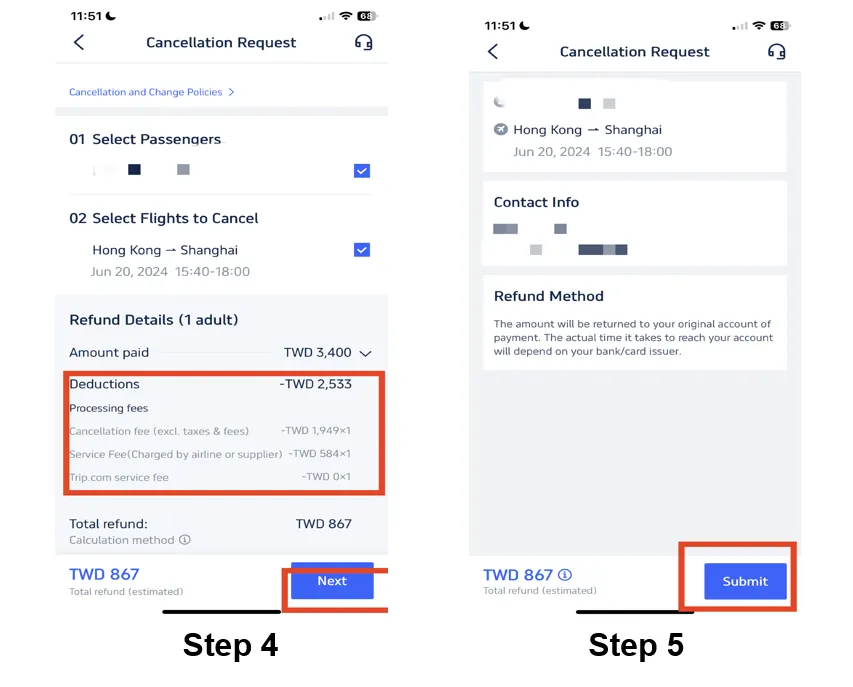
*The screenshots are only for reference.
Trending Searches
-
Air Travel Guide
-
Latest Flight Deals
-
Popular Flight & Hotel Packages
-
Getting Around
-
eSIM/SIM card
- Medellin Vacation Packages
- Hong Kong Vacation Packages
- Tokyo Flight and Hotel
- Koh Samui Flight and Hotel
- Hong Kong Flight and Hotel
- Sanya Flight and Hotel
- Rzeszow Vacation Packages
- Dubai Vacation Packages
- BALI Flight and Hotel
- Bangkok Flight and Hotel
- Fort Walton Beach Vacation Packages
- Daet Vacation Packages
- Tenerife Vacation Packages
- Oslo Vacation Packages
- Iloilo City Vacation Packages
- AREX
- Narita Airport to Tokyo
- Narita Airport Limousine Bus
- Cruises from Shanghai to Japan vs Korea
- Hotels near LAX with Shuttle
- Hangzhou Metro Map
- Beijing Airports
- JR Tokyo
- Shenzhen Metro
- Foshan Metro
- Qingdao Metro Map
- Shanghai Airport Transfer
- Nara Transportation
- Tokyo Car Rental
- Macau to Hong Kong
- Narita Airport to Shinjuku
- Shanghai Hongqiao International Airport