How to Activate eSIM on iPhone: Full Tutorial about eSIM

Source from Apple
To activate an eSIM on your iPhone, scan the QR code from your carrier or add the eSIM via Settings > Cellular > Add eSIM.
This lets your iPhone use a digital SIM without a physical card for calls, texts, and data. Make sure your device supports eSIM (iPhone XS/XR or later) and is connected to Wi‑Fi. Follow the on-screen prompts to download and enable the eSIM profile. Once completed, it works like a normal SIM, and you can remove any physical SIM if needed.
What is eSIM Exactly?
An eSIM, or embedded SIM, is a digital version of a SIM card that is built directly into your device. Unlike traditional SIM cards, an eSIM does not require a physical card to activate a cellular plan. Instead, you can download and install multiple eSIM profiles from different carriers directly onto your device. This technology allows you to manage and switch between several cellular plans without needing to change physical cards.
How Does eSIM Work?
An eSIM works much like a traditional SIM card but in a 100% digital format. Here’s how it functions:
- Activation: To activate an eSIM, you typically receive a QR code from your carrier. Scanning this code with your phone's camera allows you to download the eSIM profile directly to your device.
- Setup: The setup process includes entering any necessary verification codes and following on-screen prompts to complete the activation. Once activated, the eSIM can be used just like a physical SIM to access mobile data, make calls, and send texts.
- Multiple Profiles: One of the key advantages of eSIMs is the ability to store multiple profiles on one device. This is particularly useful for frequent travelers who need different plans in different countries, or for individuals who want to maintain separate personal and business numbers on the same phone.
- Compatibility: Most modern smartphones, including the latest models of iPhones and Android devices, support eSIM technology. This means you can use eSIMs globally, provided your carrier supports the feature
What Are the eSIM Compatible Phones?
Brand | Models Supporting eSIM |
Apple | iPhone 15, 15 Plus, 15 Pro, 15 Pro Max, iPhone 14, 14 Plus, 14 Pro, 14 Pro Max, iPhone 13, 13 Pro, 13 Pro Max, 13 mini, iPhone 12, 12 Pro, 12 Pro Max, 12 mini, iPhone 11, 11 Pro, 11 Pro Max, iPhone XS, XS Max, XR, iPhone SE 3 (2022), iPhone SE 2 (2020) |
Samsung | Galaxy A54 5G, S23 FE, Galaxy S23, S23+, S23 Ultra, Galaxy S22 5G, S22 Ultra 5G, S22+ 5G, Galaxy S21 5G, S21 Ultra 5G, S21+ 5G, Galaxy S20 5G, S20, S20+, S20+ 5G, S20 Ultra, S20 Ultra 5G, Galaxy Z Flip, Z Flip 3 5G, Z Flip 4, Z Flip 5, Galaxy Z Fold, Z Fold 2, Z Fold 3, Z Fold 4, Z Fold 5, Galaxy Note 20, Note 20 5G, Note 20 Ultra, Note 20 Ultra 5G |
Google Pixel | Pixel Fold, 8, 8 Pro, Pixel 7, 7a, 7 Pro, Pixel 6, 6a, 6 Pro, Pixel 5, 5a, Pixel 4, 4a, 4XL, Pixel 3a, 3a XL, 3, 3 XL |
Motorola | Moto G54, Edge 40 Neo, Edge 40 Pro, Edge+, Razr 40 Ultra, Razr 2022, Razr 2019, Razr 5G, G53 5G |
HUAWEI | Mate 40 Pro, P40, P40 Pro |
Oppo | Find N2 Flip, Find X3 Pro, Find X5, Find X5 Pro, Reno5 A, Reno6 Pro 5G, A55s 5G |
Rakuten | Rakuten Big, Big S, Rakuten Mini, Rakuten Hand |
Sharp | AQUOS Sense4 Lite, AQUOS R7, AQUOS Wish, AQUOS Zero6, AQUOS sense6 |
Xiaomi | 13T, 13T Pro, 13, 13 Pro, 13 Lite, 12T Pro, Redmi Note 11 Pro 5G, Redmi Note 10T |
Sony | Xperia 1 V, Xperia 1 IV, Xperia 5 IV, Xperia 10 III Lite, Xperia 10 IV |
Models Not Supporting eSIM
- Apple: Mainland China versions; Hong Kong and Macao versions (except iPhone 13 mini, iPhone 12 mini, iPhone SE 2020, and iPhone XS).
- Samsung: China, Hong Kong, Macao, and Taiwan versions; All S20 FE and S21 FE Series; USA versions (specific models including S20/S21 series, Z Flip 5G, Note 20 Ultra, Z Fold 2, etc.); Most Samsung Galaxy devices purchased in South Korea (except Galaxy S23, S23+, S23 Ultra, Z Flip 4, Z Fold 4, Z Flip 5, Fold 5, A54 5G, and S23 FE).
- Google Pixel: China, Hong Kong, Macao, and Taiwan versions; Pixel 3 phones manufactured in Australia and Japan; Pixel 3 phones purchased with service from US or Canadian carriers other than Sprint and Google Fi; Pixel 3a phones purchased in Japan, South East Asia, and with Verizon service.
【6% Off】Choose the Best eSIM Plan
In order to set up and use eSIM, you should first choose to buy eSIM plan that suits your travel need. The prices shown already include a 6% Off~
For short-term visitors and those who want to enjoy the Internet without worrying about data capacity, the "Unlimited" plan is recommended. On the other hand, if you want to reduce the cost of eSIM for international travel as much as possible, the "capped" plan is a good choice.
We have compiled a list of the cheapest eSIM prices you are interested in, so please click on the button of the place you plan to visit. 👇
Country/Region | eSIM Option | Duration | Price |
500MB/Day | 1 Day | US$0.80 | |
1GB/Day | 10 Days | US$9.94 | |
1GB/Day | 3 Days | US$5.75 | |
1GB/Day | 15 Days | US$21.58 | |
500MB/Day | 3 Days | US$1.47 | |
500MB/Day | 10 Days | US$3.79 | |
1GB/Day | 3 Days | US$5.11 | |
10GB | 14 Days | US$12.34 | |
500MB/Day | 1 Day | US$2.07 | |
1GB/Day | 15 days | US$15.00 | |
1GB/Day | 1 Day | US$6.45 | |
500MB/Day | 15 Days | US$47.21 | |
500MB/Day | 3 Days | US$2.38 | |
10GB | 15 Days | US$7.99 | |
500MB/Day | 1 Day | US$3.07 | |
1GB/Day | 7 Days | US$32.59 |
How to Set Up eSIM on iPhone?
Set up eSIM | Source from Fonetool
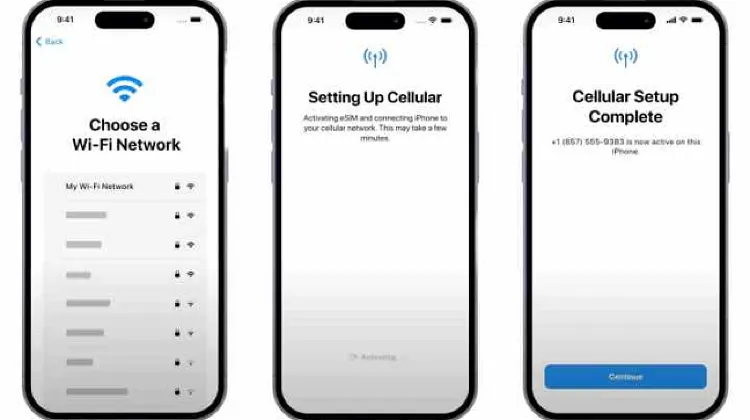
Setting up an eSIM on your iPhone involves a few straightforward steps. First, ensure your iPhone is connected to a Wi-Fi network. During the initial setup, if your carrier has assigned an eSIM to your device, you'll see a message that says "Carrier Cellular Plan Ready to Be Installed." Tap on this message, then go to Settings, select "Carrier Cellular Plan Ready to Be Installed," and tap Continue. Follow the on-screen instructions to complete the setup.
If you do not see the option to set up an eSIM during your initial setup, you can contact your carrier for activation assistance or use the QR code provided in the carrier’s app. To ensure everything is working correctly, make a test call. If the call does not go through, contact your carrier for support. Once confirmed, you can remove the physical SIM card from your device, if it has one, and restart your phone.
If you're transferring an eSIM from an old iPhone to a new one, you can use the eSIM Quick Transfer feature without involving your carrier. This method is particularly useful if you purchased a used iPhone or one not directly from your current carrier. For those switching from an Android phone to an iPhone, your carrier will need to transfer your phone number using eSIM Carrier Activation. Check more details about how to transfer eSIM here.
Here I take iPhone 15 for instance about setting up an eSIM. Here is a guide with four ways to set up an eSIM on iPhone 15:
Method | Steps |
Automatic Setup | 1. Set up your new iPhone 15. 2. Connect to a Wi-Fi network when prompted. 3. After the iPhone activation process is complete, a "Cellular Setup Complete" window will appear. 4. Tap Continue to finalize the setup. |
Manual Setup | 1. Set up your new iPhone 15. 2. When you reach the "Set up Cellular" screen, select Use QR code. 3. Scan the QR code provided by your carrier. 4. Wait for the activation to complete, then tap Continue on the "Cellular Setup Complete" screen. |
Transfering Setup | 1. Ensure both your old iPhone and new iPhone 15 are close and connected to the same Wi-Fi network. 2. During setup on your new iPhone, select Transfer from another iPhone on the "Set Up eSIM" screen. 3. On your old iPhone, select Transfer SIM. 4. Enter the code shown on the old iPhone into the new iPhone. 5. Confirm the transfer by clicking the Side button on the old iPhone. 6. Wait for the activation to finish, then tap Continue on the new iPhone. |
Setup After Initial Setup | 1. On your iPhone 15, go to Settings. 2. Tap Cellular. 3. Select Set Up Cellular. 4. Choose Add eSIM and follow the on-screen instructions to activate your eSIM. |
How to Activate eSIM on iPhone?
Activate your eSIM | Source from Alosim
Activating an eSIM on your iPhone is simple and can be done during the initial setup if your carrier supports eSIM Carrier Activation or eSIM Quick Transfer. When you turn on your new iPhone, follow the on-screen instructions to activate the eSIM. If your carrier has pre-activated an eSIM for you, just turn on the iPhone and follow the prompts.
For eSIM Quick Transfer, ensure both your old and new iPhones are logged into the same Apple ID, or at least have the old iPhone nearby, unlocked, and with Bluetooth turned on. This method does not require carrier assistance. If you need to transfer multiple SIM cards, you can add or transfer additional eSIMs after the initial setup.
If these options are unavailable, you can still set up the eSIM by contacting your carrier to get a QR code or using their iPhone app. For manual activation or if you're switching from an Android device, contact your carrier to transfer your phone number. Scan the QR code provided by your carrier using the iPhone’s camera app and follow the on-screen prompts. If you encounter any issues, contact your carrier for assistance. Once everything is set up, you can remove the physical SIM card if it was used previously and restart your iPhone to finalize the activation.
How to Download
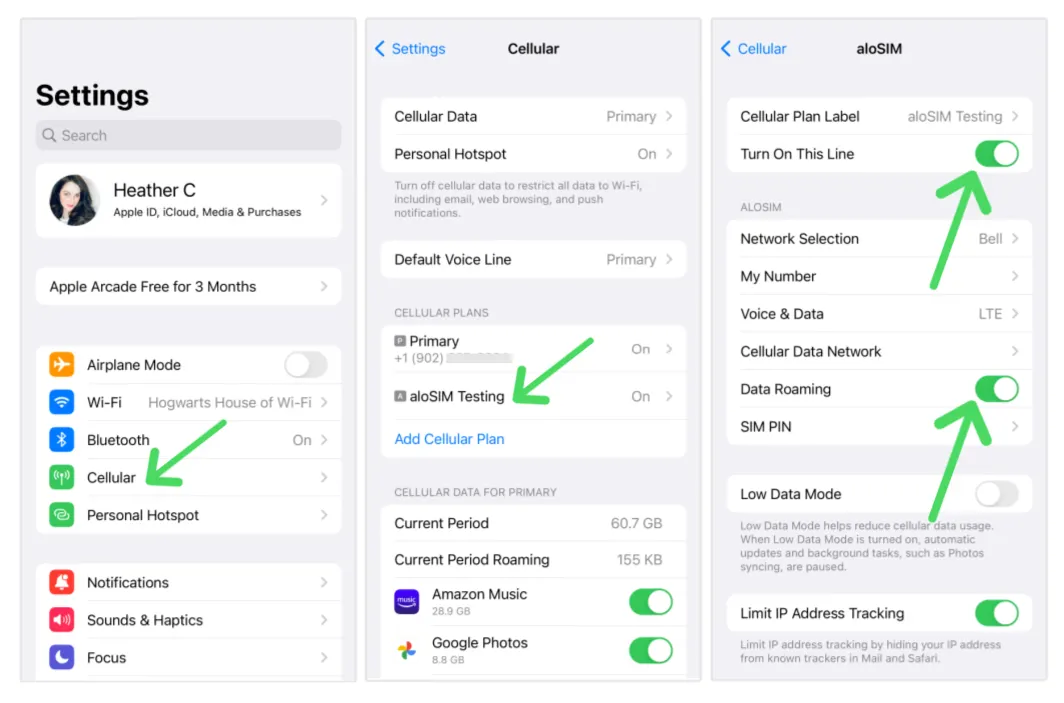
- Open the eSIM activation email, and the eSIM activation QR code will be displayed in the email.
- Go to Settings on your mobile phone and open Cellular (iOS) or SIM Card Management (Android).
- Click to add a Cellular Plan (iOS) or SIM Card (Android), and then agree to download the Cellular Plan (iOS) or SIM Card (Android). After that, use your phone to scan the QR code to download the eSIM.
How to Use the Internet
- After successfully downloading, close the primary SIM card if you already have one.
- Enable the Cellular Plan (iOS) or SIM Card (Android), and the LTE logo will appear in the upper right corner once successful.
- Turn on roaming to connect to the network and browse the internet normally.
- If there is no network after enabling, turn on airplane mode and then turn it off or restart the phone.
How to Delete eSIM from iPhone?
Delete eSIM | Source from Mobigyaan
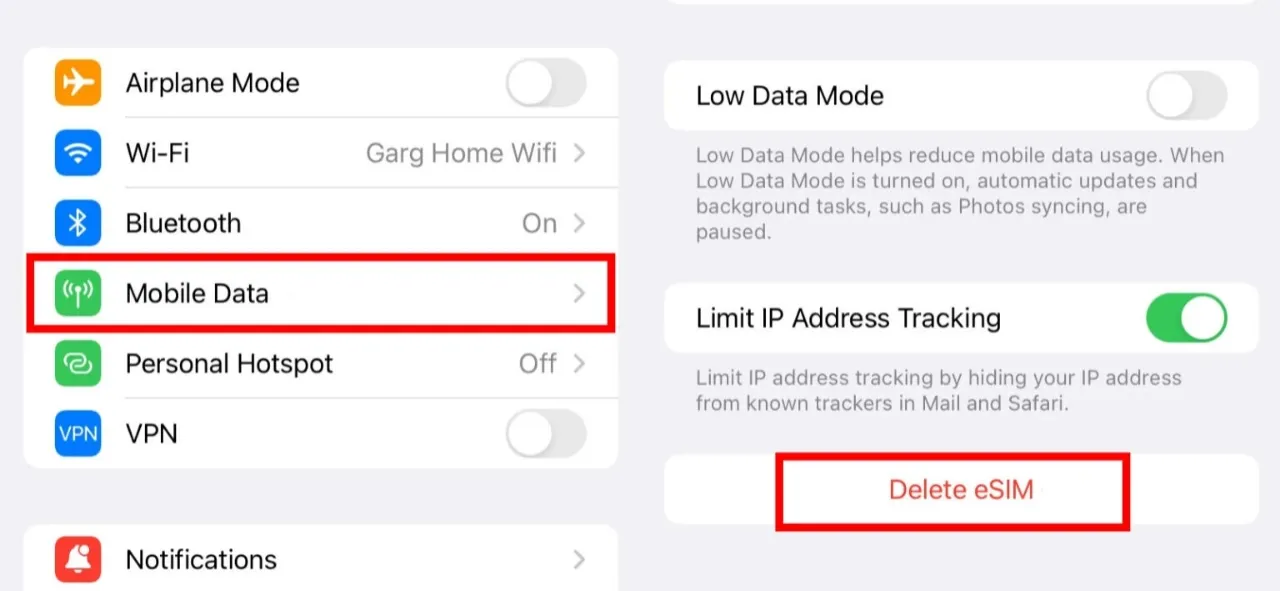
You may need to erase your eSIM if you transferred the phone number to another iPhone, or if you are selling or giving away your device. Follow these steps to erase the eSIM:
- Go to Settings.
- Tap either Cellular or Mobile Data.
- Tap the plan you want to erase.
- Tap Delete eSIM.
By following these steps, you will successfully remove the selected eSIM from your iPhone. If you plan to transfer your eSIM to another device, make sure you set up the eSIM on the new device before removing it from the current iPhone. Remember, erasing your eSIM means you will need to contact your carrier to get a new one if needed.
How to Transfer eSIM from one iPhone to Another?
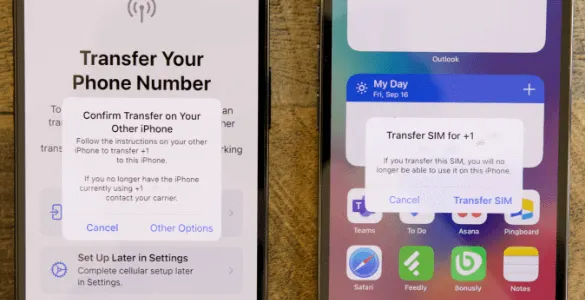
Transfer on your other iPhone | Source from Fonetool
- Prepare Both iPhones: Turn on both iPhones and connect them to the same Wi-Fi network.
- New iPhone Setup: On the new iPhone, go to Settings > Cellular and select Add eSIM.
- Choose Transfer Method: In the Set Up Cellular screen, choose to transfer a phone number from a nearby iPhone or use a QR code provided by your carrier. Follow the on-screen instructions.
- Verification and Activation: You may need to input a verification code displayed on the new iPhone or be redirected to the carrier’s page for further steps. Wait for the cellular plan to activate; once active, the old SIM card will be deactivated.
If your carrier supports converting a physical SIM to an eSIM, you can do so on the same iPhone by going to Settings > Cellular and selecting Convert to eSIM. Follow the on-screen instructions to complete the conversion.
Trending eSIM for International Travel
FAQs about How to Activate eSIM
-
What is an eSIM on iPhone?
-
How do I install an eSIM on my iPhone?
-
Can I set up eSIM myself?
-
Do I need internet to activate eSIM?
-
Can I use multiple eSIMs?
Trending Searches
-
eSIM/SIM card
-
Top destinations
-
Latest Flight Deals
-
Popular Attractions
- Hotels in Shanghai
- Hotels in Guangzhou
- Hotels in Beijing
- Hotels in Bangkok
- Hotels in Shenzhen
- Hotels in Hong Kong
- Hotels in Chongqing
- Hotels in Tokyo
- Hotels in Ho Chi Minh City
- Hotels in Chengdu
- Hotels in Kuala Lumpur
- Hotels in Seoul
- Hotels in Zhangjiajie
- Hotels in Hanoi
- Hotels in Hangzhou
- Hotels in Singapore
- Hotels in Xi'an
- Hotels in Istanbul
- Hotels in Osaka
- Hotels in Bali
- Forbidden City Tickets
- Zhangjiajie National Forest Park
- Shanghai Wild Animal Park
- Shanghai Tower Tickets
- Tianmen Mountain
- Shanghai Disneyland Tickets
- shanghai to wangxian valley
- Canton Tower Tickets
- Huangshan
- Book China Attraction Tickets with Passport
- Shanghai Disneyland Fast Pass
- Universal Studios Beijing Tickets
- Summer Palace Tickets
- Shanghai Disneyland Crowd Forecast
- Great Wall of China Tickets