How to Delete an eSIM on iPhone, iPad, Android (Fix Ghost eSIMs)

Learn how to delete an eSIM on iPhone, iPad and Android, deactivate one without deleting it, fix a deleted eSIM that still shows, and reinstall an eSIM.
to Bangkok
to Manila
to Shanghai
to Tokyo
to Seoul
See all flights


What "Deleting an eSIM" Actually Does
An eSIM is a downloaded profile that sits in the secure element of your phone, exactly as if it were a physical SIM card soldered inside. Deleting it removes the profile and its credentials from that device, which is why you lose service immediately. What it does not do is cancel the subscription, stop a recurring charge, or trigger a refund for unused data.
Android makes this explicit in its own confirmation dialog, which reads: "Erase this downloaded SIM? Erasing this SIM removes [name] service from this device. Service for [name] won't be canceled." iOS uses similar wording and adds that the plan may not be able to be added back. Both are telling you the same thing: the phone forgets the plan, but the provider still considers it yours.
How to Delete an eSIM on iPhone
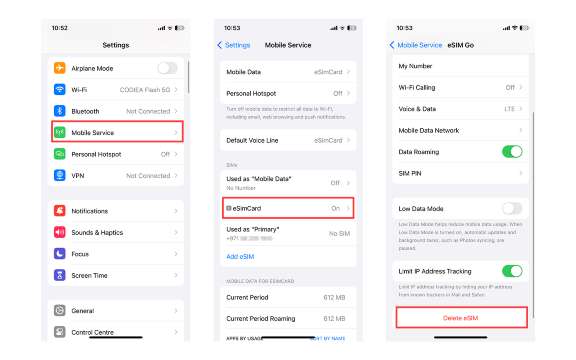
Image source: esimcard.com
On iOS 18 and later the menu is usually called Mobile Service; on older versions and in the US it is Cellular. The steps below match both, so start from whichever you see.
- Open Settings, then tap Cellular or Mobile Service.
- Under SIMs, tap the plan you want to remove. If you have several, the active one is labelled as the default for data, calls and SMS.
- Scroll down and tap Delete eSIM, or Remove Cellular Plan on older versions.
- Confirm with your passcode or Face ID when prompted.
- If you are given the choice, decide whether to keep the plan for a transfer or delete it outright. For a travel eSIM that you have finished using, delete it.
Two things worth knowing. First, iOS may warn that the plan cannot be added back, because a single-use QR code cannot simply be scanned again. Second, deleting the eSIM does not touch your physical SIM, and the reverse is also true: if a physical SIM is still inserted, it can affect how the settings behave, which is covered in the ghost eSIM section below.

Global 77 Countries 4G/5G eSIM | Day Pass/Total Data Package | 24-Hour Billing | QR Code
4.6/5
5386 reviewsExcellent connection and high speed wherever I am, with honest data usage. It's a shame there's no texting or calling.

Global (77 Countries) 5G/4G eSIM | Supports Google Maps/TikTok/ChatGPT | Total Data Plan | 24-Hour Billing | 1–30 Days | QR code
4.4/5
29744 reviewsIn summary, this is the best and most cost-effective SIM card I've ever used for traveling in China. Booking through the app was smooth and seamless, and what impressed me most was that it allowed payment with Trip Coins, saving me a lot on my trip. Upon arrival in China, activating the SIM was easy, the signal was good and widespread, and the internet speed was full, allowing me to use various applications like maps, social media, and translation apps quickly. This convenience made my trip to China incredibly smooth and happy.

Kazakhstan 4G eSIM | Supports TikTok & ChatGPT | Daily package/data package | Billed by 24 hr | QR code
4.5/5
89 reviewsHello, how do I disable eSIM?
How to Delete an eSIM on iPad
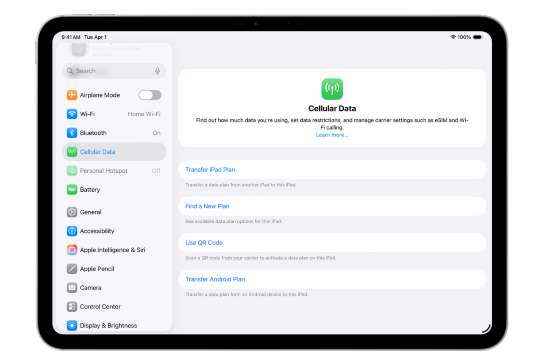
Image source: Apple
Cellular iPads use the same eSIM system, just under a different label. There is no Phone app, so you will not see call settings, but the deletion steps are identical.
- Open Settings, then tap Cellular Data.
- Tap the plan you want to remove.
- Tap Delete eSIM, or Remove Plan depending on the iPadOS version.
- Confirm when asked.
On an iPad that only uses mobile data, deleting a travel eSIM is low risk, since you can usually fall back to Wi-Fi. Just remember that if the eSIM is still within its validity period and you delete it, you will not get the remaining data back.
How to Delete an eSIM on Android
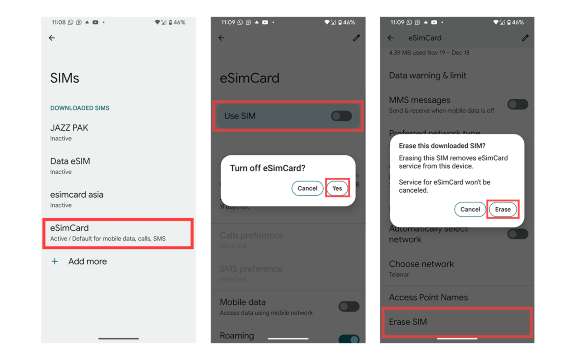
Image source: esimcard.com
Android puts eSIM management in the SIM settings, and the wording differs by manufacturer. On Pixel and stock Android it is Erase SIM; on Samsung it is Remove or Delete under SIM Manager. The confirmation dialog, shown in the screenshots commonly shared online, reads "Erase this downloaded SIM?" and states that the service will not be canceled.
- Open Settings, then tap Network and internet, then SIMs. On Samsung, go to Connections, then SIM Manager.
- You will see a list of downloaded SIMs. Inactive ones are labelled as such, and the active one is marked as the default for mobile data, calls and SMS.
- Tap the eSIM you want to remove.
- To deactivate it first, turn off Use SIM and confirm with Yes. The line stops working but the profile stays.
- To remove it completely, scroll to Erase SIM and tap it.
- Read the confirmation, which reminds you that erasing the SIM does not cancel the service, then tap Erase.
Two Android-specific notes. Erasing a profile requires the phone to keep at least one working line in some configurations, so delete the eSIM you no longer need before the one you rely on. And if you are only pausing a plan, use the toggle rather than Erase SIM, because a deleted profile cannot be switched back on.
Can I Delete an eSIM and Add It Back Later?
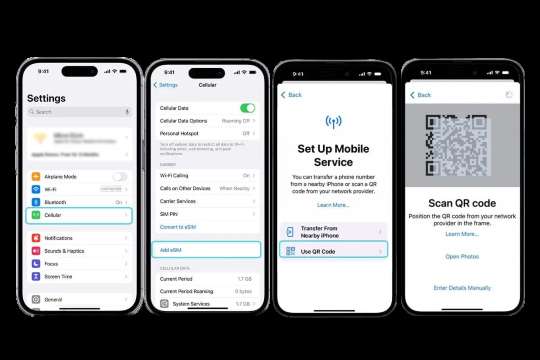
Image source: goglobal-esim.com
Sometimes, and it depends entirely on the provider. There are three common cases.
- Carrier eSIM with an app or self-service portal: usually easy. You sign in and download the profile again, sometimes for free, sometimes for a small fee.
- Travel eSIM with a single-use QR code: usually not possible by simply re-scanning. The code has already been redeemed, so you need the provider to issue a new QR or reactivate the profile.
- Provider that allows re-download within the validity period: you may get the same profile back, with the remaining data intact. Check before deleting.
If you deleted a travel eSIM by accident, contact the provider quickly and have your order number ready. Support teams can often reissue a profile, but replacement policies and fees vary, and deleted data is rarely recoverable.
Fail to Delete eSIM? Fixes That Worked for Other Users
These come from long-running forum threads on the same problem, and they are worth trying in order before you escalate.
- Remove the physical SIM, reboot, and reinsert it. Multiple users reported that a physical SIM in the phone was the reason the deleted eSIM would not clear.
- Tap the ghost entry and choose an active line for contacts. This is the fix most people end up using.
- Check Settings, then Phone, then My Number after a number port, and correct the old number manually.
- Turn on another line so the contact prompt appears, then complete it.
- Turn off VPNs and remove configuration or security profiles, then try deleting again.
- Update iOS. One user traced the problem to a specific version and it was resolved by the next update.
- Use Delete All eSIMs from the reset menu as the nuclear option, but only if you have confirmed you can re-add your active line.
- Factory reset as the last resort. Apple support has suggested this where a profile simply would not clear, and it does work, but you will need to set the device up again.
Also worth knowing: some users report that the stale entry eventually disappears on its own after a few weeks or after an iOS update, and that it causes no service problems while it sits there. If everything else is working, ignoring a ghost name in the list is a legitimate option.
Things to Check Before You Delete an eSIM
This is the part people skip, and it is where the problems start. Run through the table below before you tap delete, especially if the eSIM is your main line or a travel plan with data still on it.
What to check | Why it matters |
|---|---|
Is the eSIM still active or in use? | You lose mobile service the moment it is removed |
Do you still need the number? | The number belongs to the provider, and restoring it to this device may require a new QR code or a reissue |
Is the plan still valid with data left? | Deleting does not refund unused data or extend validity |
Do you have the original QR code, activation email or provider app? | Many QR codes are single-use, so you may need the provider to issue a new one |
Is this your only working line? | Deleting your last eSIM with no way to re-add it leaves you with no mobile service |
Do you have another SIM, eSIM or Wi-Fi nearby? | You need a connection to contact support or download a replacement profile |
Is it a travel eSIM from Trip.com or another provider? | Check that provider's reissue and refund rules before deleting, not after |
Will you need the same profile for another trip? | Some providers let you keep and reuse a profile, and some plans stay valid for months |
Is the number used for OTP or two-factor codes? | Losing the line can lock you out of banking, email and messaging accounts |
Are you selling, trading in or handing over the device? | A leftover eSIM can leave the new owner holding a line registered to you |
Is the phone carrier-locked or managed by work? | Security profiles, VPNs and MDM settings can block deletion or reinstallation |
Have you noted the plan name and ICCID? | It makes provider support much faster if the profile will not delete |
How to Delete All eSIMs at Once
When a profile refuses to disappear, or when you are preparing a phone for sale, the reset route removes every stored eSIM in one go. It is effective, and it is also the option most likely to leave you without service, so read the warnings.
iPhone and iPad
- Confirm with your provider that you can add a replacement eSIM to this device, and that it will not be blocked or charged unexpectedly.
- Go to Settings, then General, then Transfer or Reset iPhone.
- Tap Reset, then Delete All eSIMs.
- Work through the confirmation prompts. There are usually three or four warnings.
- Re-add your main line using the provider's process, which is often an app-based download or a new QR code.
After this, the old eSIM names may still appear in the settings list, but they should carry no information and no service. If they still bother you, the contact-preference trick below usually clears them.
Android
On Pixel and stock Android, the equivalent sits under Settings, then System, then Reset options, then Erase all eSIMs. Samsung and other brands vary, so if you cannot find it, use the per-profile Erase SIM steps above for each line instead.
How to Delete an eSIM Without the Phone
This is the question that catches people who have lost a device, sold it, or upgraded. An eSIM lives on the device, so there is no way to delete it remotely from your Apple Account, Google account or the provider's app. What you can do depends on what happened to the phone.
Situation | What to do |
|---|---|
Phone lost or stolen | Contact the provider to cancel or suspend the line, and remove the device from Find My or your Google account. The profile cannot be wiped remotely by you |
Sold or traded in, already handed over | Ask the provider to cancel the line so it cannot be used, and change any passwords tied to that number |
Sold or trading in, still in your hands | Delete the eSIM in settings first, then erase the device and sign out of your accounts |
Upgraded to a new phone, old one still around | Move the number to the new device first, then delete the old eSIM on the old phone |
Old phone is gone and you want the number back | Only the provider can reissue the line. Contact them for a new eSIM, usually issued by app or QR code |
One practical point for anyone recycling a phone: erasing the device is not the same as deleting the eSIM first. Deleting it in settings gives you a clear confirmation and removes it from the SIM list before the device leaves your hands, which is tidier than relying on the reset.
 Global eSIM
  China eSIM
  Thailand eSIM
  Japan eSIM
  Vietnam eSIM
  India eSIM
  Malaysia eSIM
  South Korea eSIM
  Indonesia eSIM
  UK eSIM
  Singapore eSIM
  USA eSIM
  Italy eSIM
  Egypt eSIM
  Saudi Arabia eSIM
  Germany eSIM
  Canada eSIM
  Portugal eSIM
  Pakistan eSIM
  Aruba eSIM
  Switzerland eSIM
  Greece eSIM
  Israel eSIM
  Morocco eSIM
 How to Deactivate an eSIM Without Deleting It
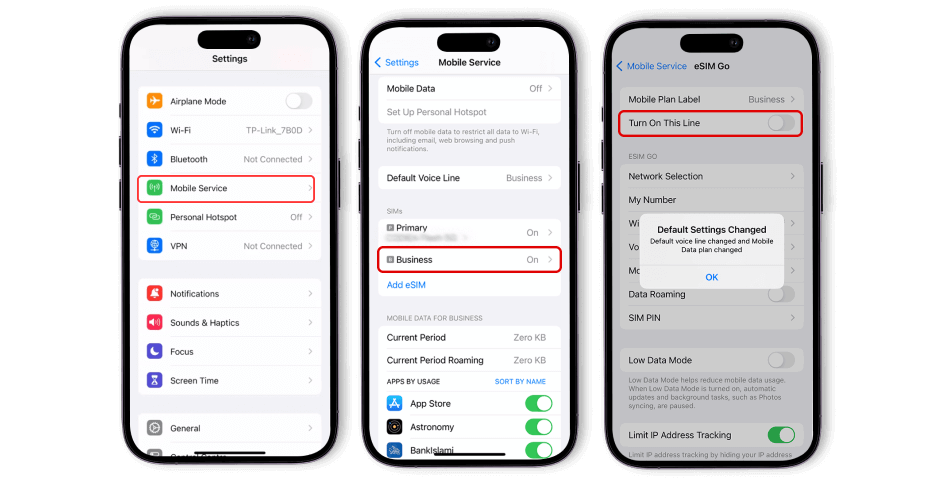
Image source: esimcard.com
Most of the time you do not actually want to delete anything. You want the line off so it stops using data or interfering with your main number. Both platforms let you do that while keeping the profile.
- iPhone: Settings, then Cellular or Mobile Service, then tap the plan and turn off Turn On This Line. To stop it using data only, go to Mobile Data and select your main line instead.
- Android: Settings, then Network and internet, then SIMs, tap the eSIM and turn off Use SIM. Confirm with Yes.
Deactivating keeps the plan available for later, which matters if you are between trips or keeping a backup line. The profile also stays in your eSIM list, so you can switch it back on without needing the provider.
Does Deleting an eSIM Cancel the Plan?
No. This is the single most misunderstood point. Deleting the profile removes it from your phone, but the subscription remains active with the provider, and any recurring billing continues unless you cancel it separately.
It also works in the other direction: deleting an eSIM does not entitle you to a refund for unused data or remaining validity. If you want money back, that is a commercial request to the provider, governed by their refund policy rather than by anything you do in your phone settings. For a Trip.com eSIM, check the refund terms on the product page or in the app before you assume anything.
How to Switch Back to Your Main SIM After Deleting an eSIM
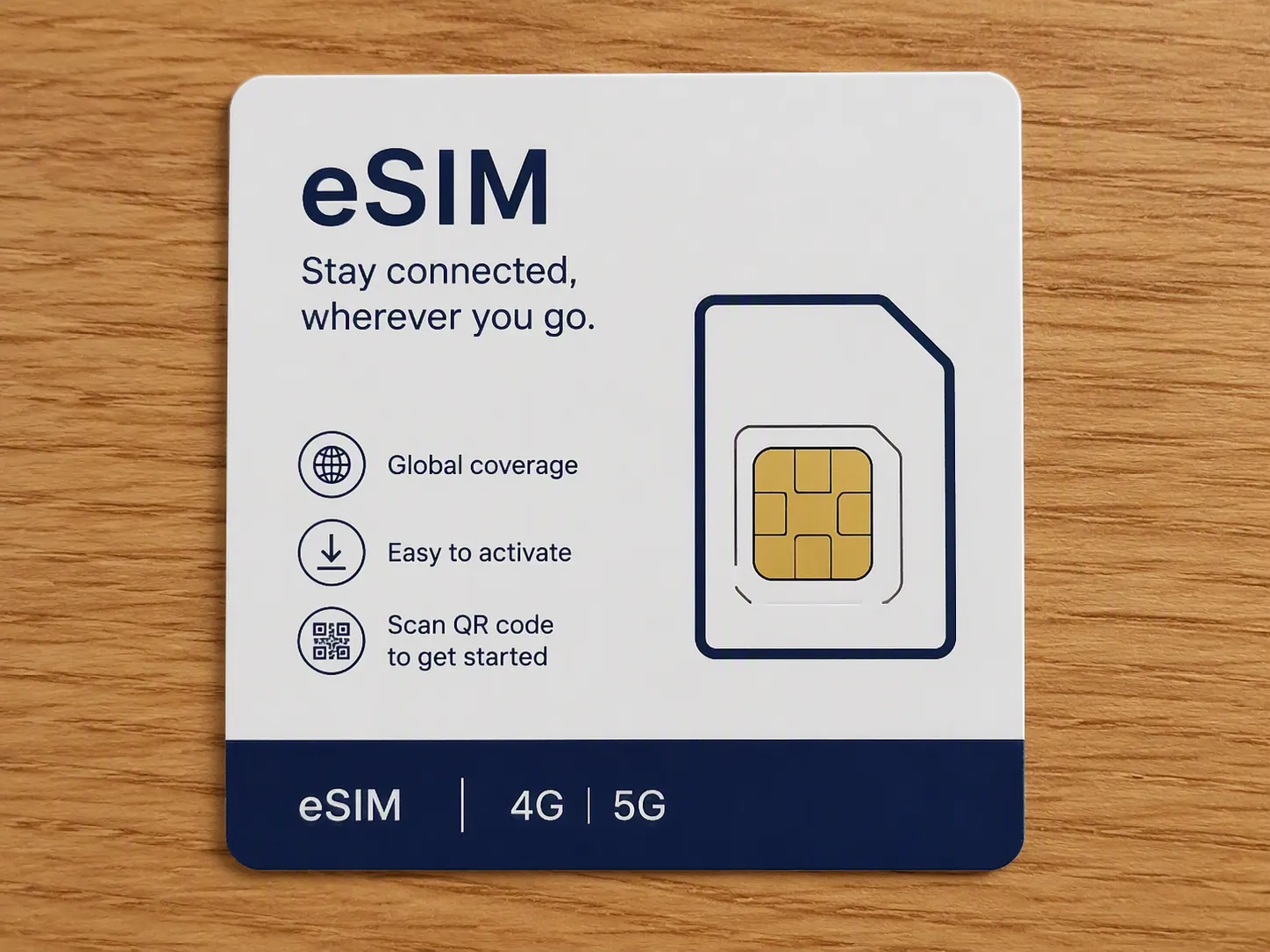
After removing a travel eSIM, most phones revert to the remaining line automatically, but the defaults are worth checking.
- Turn the main line back on if it was switched off.
- Set it as the default for mobile data, and if it is a phone line, for calls and SMS too.
- Check that mobile data roaming is off on your home line if you are back on your home network.
- On iPhone, if an old eSIM entry lingers, tap it and choose your main line when the contact-preference prompt appears.
- If your number did not update, open Settings, then Phone, then My Number, and correct it manually. This has fixed the problem for users who ported a number and found the old one still showing.
How to Delete a Trip.com eSIM
A Trip.com eSIM is deleted the same way as any other: in your phone's settings, not in the app. The app is where you buy the plan, receive the QR code and manage your order, but the profile itself lives on the device.
- To remove it: follow the iPhone, iPad or Android steps above and delete or erase the profile from your SIM settings.
- What stays behind: the order remains in your Trip.com account under your bookings and eSIM history, which is useful if you need support later.
- If you deleted it too early: contact Trip.com customer support through the app with your order number. Support can tell you whether the profile can be reissued for that plan and whether any fee applies.
- Refunds: these depend on the specific product and whether the eSIM was activated or used. Check the refund policy on the order before deleting anything.
- Before a phone upgrade or trade-in: delete the Trip.com eSIM on the old device, then reinstall it on the new one using a reissued QR code if your plan is still valid.
Why Is My Deleted eSIM Still Showing on My iPhone?
This is the most common complaint about eSIM deletion, and there is usually an explanation. In most cases the leftover entry is a placeholder rather than a working line, but a few specific causes are worth checking, because the fix is different for each.
Symptom | Likely cause | What to try |
|---|---|---|
Deleted eSIM still listed with no service | The entry is a ghost placeholder left in the settings list | Tap the entry and accept the contact-preference prompt, choosing an active line |
Ghost entry will not respond to taps | A physical SIM is still inserted and interferes with the list | Remove the physical SIM, reboot, and check again. This has fixed the problem for many users |
No prompt appears when you tap it | The prompt only appears when another line is active | Turn on another line first, then tap the ghost entry and choose it |
Entry survives a restart and network reset | An iOS bug in some versions, or an MDM, VPN or security profile | Update iOS, remove VPN and configuration profiles, then retry |
Entry still there after a factory reset and iCloud restore | The backup restored the stale entry | Use Delete All eSIMs, then set up the phone and re-add your active line only |
Number shows incorrectly after porting | The My Number field was not updated | Settings, then Phone, then My Number and correct it |
Nothing works at all | Persistent profile or software fault | Delete All eSIMs, then re-add, or in the worst case erase the device and set it up clean |
A Note on the "Update Contacts" Prompt
Several users avoid that prompt because it sounds like it will message their contacts. It does not. The prompt simply asks which line should be used when you call the people in your address book; accepting it and choosing an active line is what makes the ghost entry disappear for most people. If you have contacts blocked and you are worried about anything changing, note that the prompt does not send messages or replace your contacts, it only sets your calling preference.
🔥[Discount] Global Hotel Recommendations
Search Top Global Hotels
See All Hotels
 NO.1
NO.1






FAQs about How to delete an eSIM
-
Can I delete an eSIM and add it back later?
-
Is it okay to delete an eSIM from an iPhone?
-
Why is my deleted eSIM still showing up on my iPhone?
-
How do I deactivate an eSIM without deleting it?
-
How do I delete an eSIM on an Android phone?
-
What happens to my data plan when I delete a travel eSIM?
Disclaimer: This article has been provided by an individual contributor or third party platform. If there is any discrepancy regarding the copyright, please contact us directly and we will delete the content immediately.
Trending Searches
-
eSIM/SIM card
-
Top destinations
-
Latest Flight Deals
-
Popular Attractions
- Hotels in Shanghai
- Hotels in Guangzhou
- Hotels in Beijing
- Hotels in Bangkok
- Hotels in Shenzhen
- Hotels in Hong Kong
- Hotels in Chongqing
- Hotels in Tokyo
- Hotels in Ho Chi Minh City
- Hotels in Chengdu
- Hotels in Kuala Lumpur
- Hotels in Seoul
- Hotels in Zhangjiajie
- Hotels in Hanoi
- Hotels in Singapore
- Hotels in Hangzhou
- Hotels in Xi'an
- Hotels in Istanbul
- Hotels in Bali
- Hotels in Osaka
- Forbidden City Tickets
- Zhangjiajie National Forest Park
- Shanghai Tower Tickets
- Shanghai Disneyland Tickets
- Shanghai Wild Animal Park
- Canton Tower Tickets
- shanghai to wangxian valley
- Shanghai Disneyland Fast Pass
- Huangshan
- Book China Attraction Tickets with Passport
- Universal Studios Beijing Tickets
- Great Wall of China Tickets
- Yu Garden Tickets
- Summer Palace Tickets
- Shanghai Disneyland Crowd Forecast